
8 Miro alternatives for whiteboard collaboration + visual brainstorming

8 Miro alternatives for whiteboard collaboration + visual brainstorming
Table of contents
Share

TL;DR

  • Miro gives teams tools for brainstorming, diagramming, prototyping, project planning, and AI workflows, but its per-member pricing can add up as your team grows.
  • The eight Miro alternatives compared are Goodnotes, Mural, Whimsical, FigJam, Conceptboard, Microsoft Whiteboard, Lucidspark, and Excalidraw.
  • Goodnotes is a good fit if you want to brainstorm on an infinite Whiteboard, write or draw with a stylus, collaborate in real time, and expand on those ideas with Notebooks, PDFs, or Text Documents.
  • Mural is built for facilitated workshops, Whimsical focuses on user flows and wireframes, FigJam fits teams working in Figma, and Conceptboard combines built-in video calls with moderator controls and board-based task management.
  • Microsoft Whiteboard connects with Teams and Loop, Lucidspark lets teams turn brainstorms into Lucidchart diagrams, and Excalidraw works well for hand-drawn diagrams and wireframes without requiring an account.

Miro is a visual collaboration platform built around an infinite canvas. Teams use it to brainstorm and map ideas, plan projects, create diagrams, and build prototypes together.

But Miro’s per-member pricing can add up quickly as your team grows, with Starter costing $10 per member/month and Business at $25 per member/month.

In this article, we compare the best Miro alternatives based on their visual collaboration features, pricing, platform support, and ideal use cases to help you find the right fit.

Let’s start with Goodnotes.

1. Goodnotes

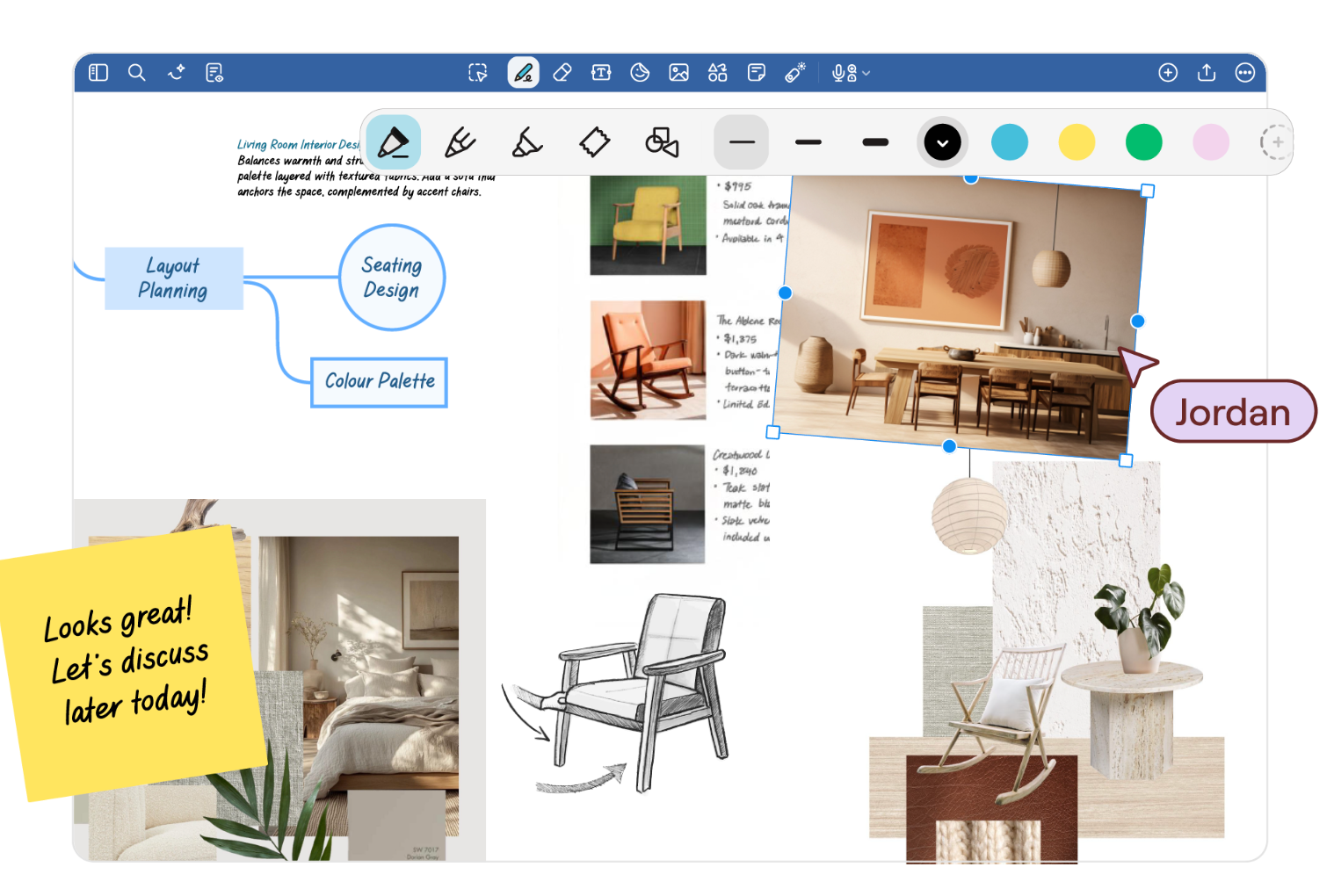
Goodnotes is a note-taking and visual collaboration app for professionals who need to sketch concepts, map processes, annotate documents, and build diagrams on an infinite digital whiteboard.

The Whiteboard is built around Goodnotes’ handwriting experience. You can start with rough sketches, connect ideas visually, and use diagramming tools to turn them into clearer mind maps or workflows. The Goodnotes marketplace also offers templates for brainstorming, meetings, and project planning.

For teams, Goodnotes supports real-time collaboration across shared Whiteboards. Everyone can contribute to the same canvas in real-time, with handwritten notes, sketches, comments, and annotations.

Goodnotes also gives you Notebooks and Text Documents alongside Whiteboards. This makes it easier to move from a visual brainstorm into more structured notes or written work without switching to a separate app.
Key features:

  • Infinite whiteboards: Quickly create an infinite canvas to brainstorm and mind map. The canvas expands as you work,  giving you more room as your ideas develop without forcing everything onto a fixed page.
  • Handwriting and diagramming: Sketch ideas naturally with a stylus, then use shapes and connectors to turn rough thinking into clearer diagrams, workflows, and mind maps. Connectors snap to shape edges to keep diagrams organized.
  • Real-time collaboration: Work together on shared Whiteboards with live cursors and instant updates. Teammates can add handwriting, sketches, sticky notes, comments, and annotations while everyone works on the same canvas.
  • Goodnotes AI: Search across typed text, handwriting, and sketches to find ideas from previous sessions. You can also use Goodnotes AI to summarize discussions, extract action items, or turn notes into diagrams and more structured follow-up work.
  • Meeting follow-up: Goodnotes AI for Meetings can record and transcribe brainstorming sessions, summarize what was discussed, and identify decisions and action items. It also connects with Google Calendar, Microsoft Outlook, and Apple Calendar so meeting notes stay tied to the relevant event.
  • Text Documents: Keep the work going after a brainstorm with structured typed documents for meeting notes, project documentation, proposals, and reports. Add headings, lists, tables, and media, then collaborate on the document with your team.
  • Contextual feedback: Leave comments directly on shared work. This keeps questions, revisions, and decisions connected to the ideas being discussed.
  • ChatGPT and Claude integrations: Turn a brainstorm in ChatGPT or Claude into an editable Goodnotes Whiteboard, mind map, flowchart, or timeline, then continue working on it with handwriting, comments, and team collaboration.
  • Cross-platform collaboration: Access shared work across iPad, iPhone, Mac, Android, Windows, and the web, so teammates can contribute even if they aren’t all using the same device.
🎬Want a sneak peek? Watch this walkthrough to see how the infinite canvas helps you brainstorm, sketch, and collaborate with your team.

Pros and cons

Pros Cons
You can brainstorm, sketch, add sticky notes, and build diagrams on an infinite canvas using a stylus, keyboard, or mouse. Some parts of the Whiteboard experience vary by platform. For example, the minimap is only available on iOS and iPadOS, while converting an existing notebook into a Whiteboard is currently limited to iOS.
Whiteboards, Notebooks, and Text Documents live in the same app, so you can move from an early brainstorm into more structured notes or documentation. Real-time collaboration requires at least one member to have Goodnotes Pro. Up to 50 people can collaborate with live cursors and instant updates at once, as long as one is a Goodnotes Pro member.
Teams can collaborate on the same Whiteboard with live cursors, handwriting, sketches, comments, and annotations.  

Pricing

The Goodnotes Essential and Pro plans both offer a 7-day free trial, while the Teams plan includes a 30-day free trial. You can also add the AI Pass for $9.99/month to Essential or Pro to unlock the full AI experience. Goodnotes AI is included in the Teams and Enterprise plans.

Free Essential Pro Teams Enterprise
$0 $11.99/year $35.99/year $120 per seat /year Custom plan
  • Up to 3 files, 5MB import size
  • Note-taking tools
  • Export without watermark
  • Live collaboration sharing
  • Unlimited files
  • Includes all note-taking tools
  • Unlimited audio recording
  • Access limited AI capabilities
  • Google Calendar integration

Everything in Essential, plus:

  • Drive integration
  • Google Calendar integration
  • Private link sharing
  • Real-time collaborations
  • Sync across devices
  • AI capabilities

Everything in Pro, plus:

  • SAML SSO
  • Domain control
  • Consolidated billing
  • Users & Admins management
  • Advanced collaborations
  • Integration support

Everything in Teams, plus:

  • Privacy & security requests
  • Prioritized security requests
  • AI permissions
  • Dedicated account support
  • Microsoft Intune App SDK
  • Customizable solutions

2. Mural

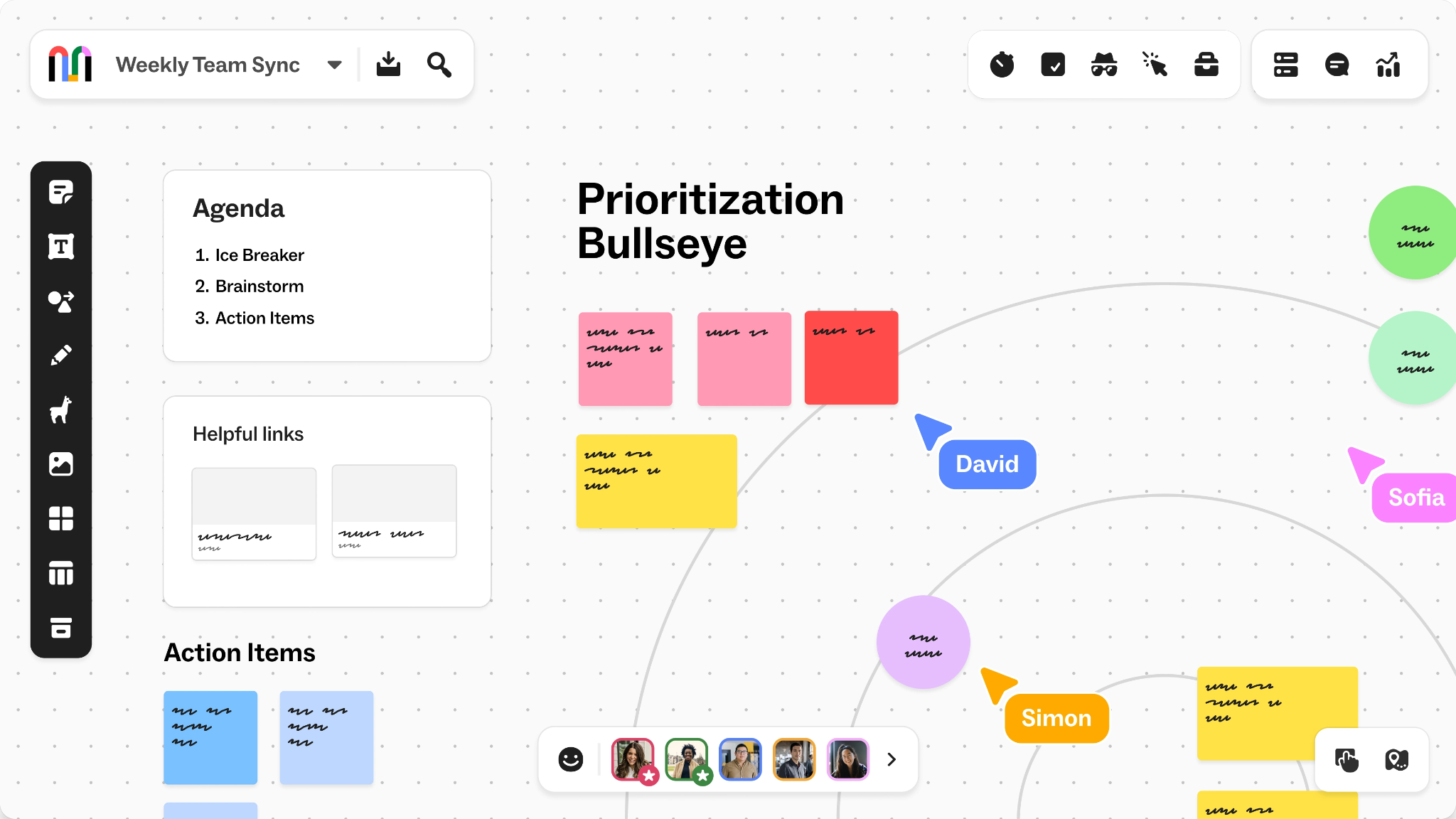
Mural is built for teams that need to work through ideas together, especially during facilitated workshops. You can use sticky notes, diagrams, mind maps, and an infinite canvas to collect and organize your team’s ideas.

Product teams can use Mural for sprint planning, retrospectives, and design thinking sessions. Facilitation features such as timers, voting, and the ability to bring everyone to the same part of the board help keep discussions focused.
‍

Key features:

  • AI clustering and summaries: Use Mural AI to group related ideas, identify themes, and summarize workshop output so teams can make sense of a large board—even if they weren’t part of creating it. 
  • Flexible permissions: Control who can view, edit, or facilitate a mural when different departments or external collaborators need different levels of access.
  • Custom templates: Create and publish reusable templates across the workspace to standardize recurring workshops, planning sessions, and team processes.
  • Mural MCP: Connect Mural with AI assistants such as ChatGPT, Claude, and Cursor to create or edit boards, organize content, and build diagrams using natural-language prompts.
  • Integrations: Connect Mural with tools like Jira, Microsoft Teams, and Figma to move ideas into project workflows, collaborate within existing communication channels, and bring design files into review sessions.

Pros and cons

Pros Cons
Includes facilitation features such as voting, timers, Private Mode, and facilitator controls that help teams run structured workshops. Mural’s MCP integration is still in public preview and currently works with one mural at a time. The mural also needs to be open in your browser for the AI assistant to work with its live canvas.
Suits cross-functional teams well because product, design, engineering, and other departments can contribute to the same visual discussion. PDF and PNG exports are processed first and can take five to 15 minutes before the download link arrives by email.

Pricing

Free Team+ Business Enterprise
$0 $12 per member/month $17.99 per member/month, billed annually Custom
  • Unlimited murals with 3 editable murals at a time
  • Unlimited visitors with view-only rights
  • Open rooms for your workspace members
  • All visual collaboration tools

All Free plan features, plus:

  • Unlimited editable murals in your workspace
  • Unlimited visitors with editing rights
  • Private rooms for your workspace members
  • Mural AI
  • Basic integrations (Zoom, Webex, etc.)

All Team+ features, plus:

  • Single sign-on (SSO) (SAML 2.0)
  • Invite and collaborate with unlimited external users
  • Advanced integrations (Azure, GitHub, Okta, etc.)
  • Pay by credit card or invoice
  • LUMA frameworks
  • Priority support

All Business features, plus:

  • Enhanced privacy and control with multiple workspaces
  • Advanced security and administrative controls
  • SCIM user and group management
  • Audit logs, downloadable reports, and reporting APIs
  • Require 2FA (members and guests)
  • Data residency
  • BYOK
  • Premier support
  • Expert collaboration training and tools

3. Whimsical

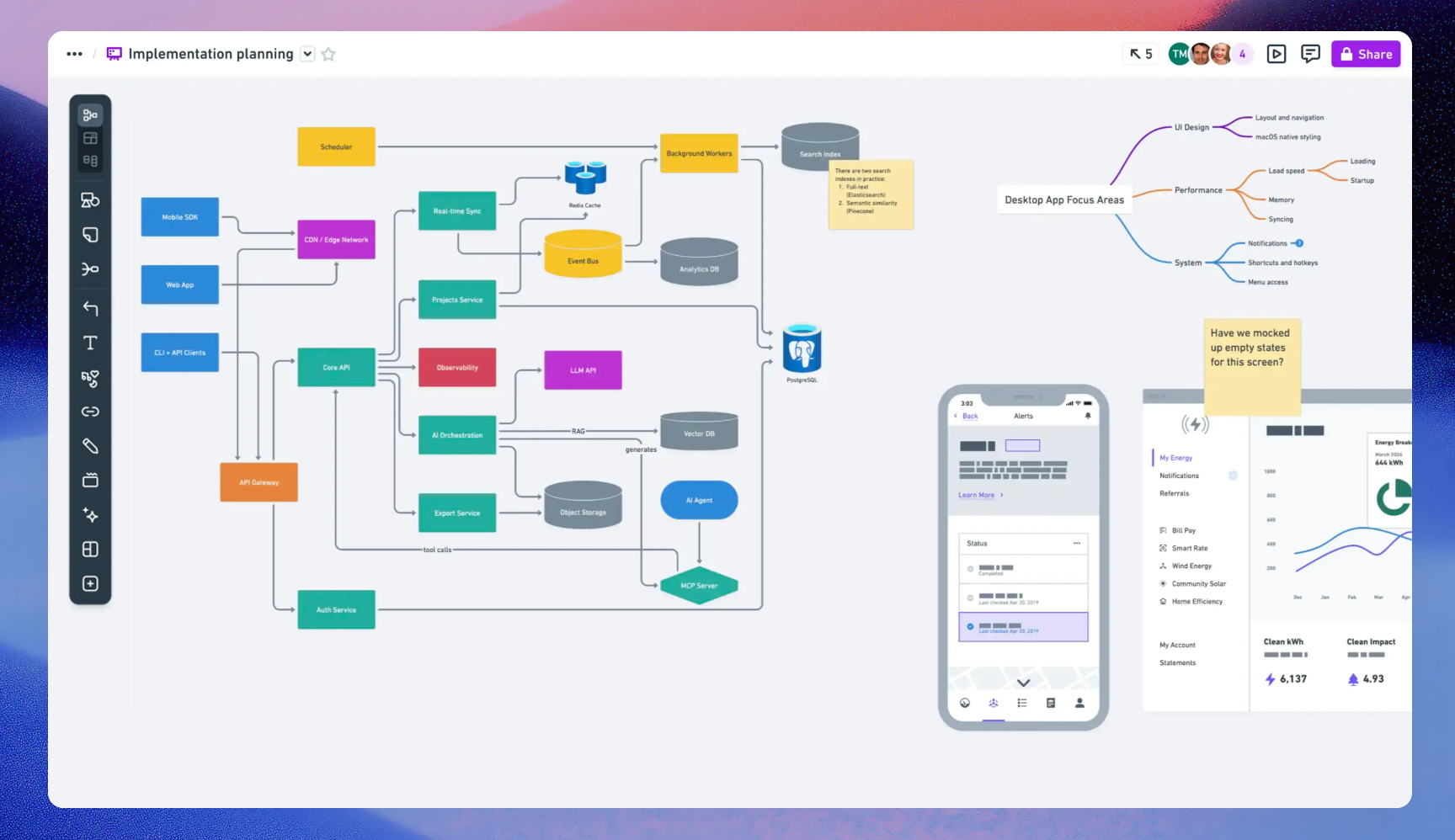
Whimsical is aimed at product teams that need to work through how a product or feature should function before it is built. Product managers and designers can map user flows, sketch wireframes, document processes, and keep those discussions close to the visual work itself. Its AI tools can also generate flowcharts, wireframes, and mind maps from prompts, or work with context from your existing workspace.
Key features:

  • Structured diagramming: Build flowcharts, sequence diagrams, and process maps with connectors, shapes, icons, and auto-layout tools that keep complex diagrams organized.
  • Wireframing: Create low-fidelity product screens and user flows directly on the board, so product managers and designers can evaluate functionality before moving into detailed design.
  • Whimsical AI: Generate editable flowcharts, mind maps, and wireframes from a prompt instead of starting with a blank canvas.
  • Real-time collaboration: Work on the same board with teammates, leave comments, and review changes together.
  • Integrations: Embed Whimsical boards in tools like Jira, Notion, Slack, and GitHub so diagrams and design context stay connected to tasks, documentation, and development work.
  • Version history: Review earlier versions of a board and restore previous work if a flow, wireframe, or diagram changes during planning.

Pros and cons

Pros Cons
The Free plan includes unlimited boards and workspace members, which gives small teams room to test Whimsical before paying for additional capacity. Whimsical requires an internet connection. You can’t access or edit boards offline.
Guests don’t require paid seats. You can invite external collaborators and give them view, comment, or edit access. It doesn’t have a dedicated mobile app. You can view boards and leave comments in a mobile browser, but editing is limited.
Whimsical keeps product planning focused on a smaller set of formats, so teams can move between flows, wireframes, diagrams, and documentation without navigating a much broader workspace. The Free plan limits you to 50 new board objects and 50 doc blocks per month. Exports also include a Whimsical watermark, and version history is limited to seven days.

Pricing

Free Pro Business
$0 $12 per editor/month $24 per editor/month
  • Create up to 50 board objects per month
  • Create up to 50 doc blocks per month
  • Watermark on exports
  • 7-day version history

Everything in Free, plus:

  • Unlimited board objects
  • Unlimited doc blocks
  • Remove watermark on exports
  • 90-day version history

Everything in Pro, plus:

  • Private teams
  • SAML single sign-on
  • SCIM and more security controls
  • Unlimited version history

4. FigJam

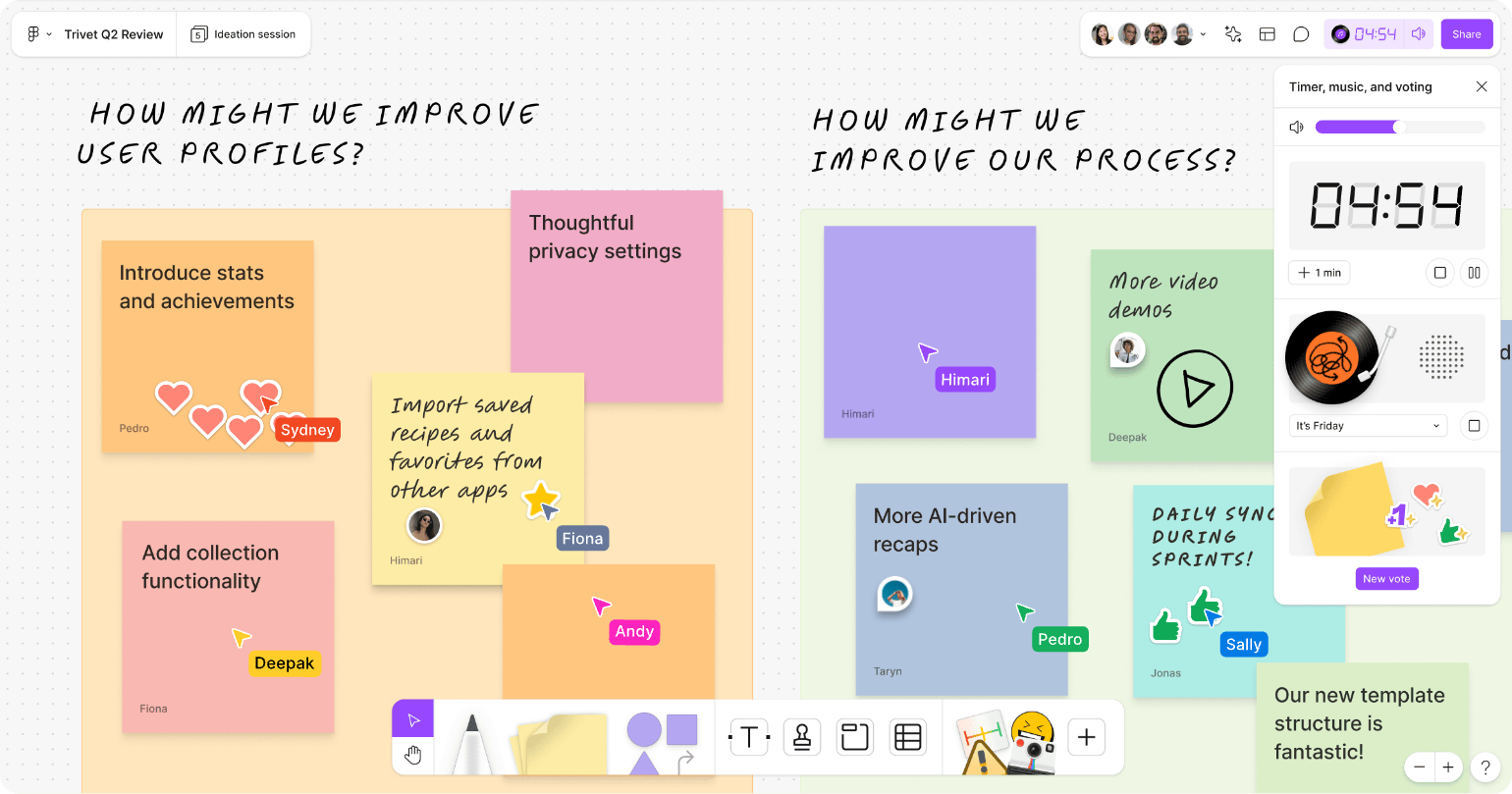
FigJam is Figma’s online whiteboard tool for brainstorming and team collaboration. Teams can map user journeys, organize research, plan projects, and run retrospectives, while bringing existing Figma work directly onto the board. You can copy design frames and components into FigJam or add interactive prototype previews, so teams can review work without leaving the board.
‍Key features:

  • FigJam AI: Generate boards, flowcharts, mind maps, timelines, and project plans from a prompt. AI can also sort sticky notes into themes and summarize a board into key takeaways and next steps.
  • Task management integrations: Connect FigJam with Asana, Jira, and GitHub to turn ideas into assigned tasks or development work.
  • Facilitation tools: Use timers, voting, and Spotlight mode to guide workshops and keep sessions on track.
  • Advanced diagramming: Create process maps and technical diagrams with shapes and connectors, including advanced shapes for AWS, Google Cloud, Azure, and Kubernetes.
  • Open sessions: Invite people outside your team to join a FigJam session for up to 24 hours, which is useful for workshops with clients or external collaborators.
  • AI integrations: Create editable FigJam diagrams directly from conversations in ChatGPT, Claude, or Microsoft Copilot, then open them in FigJam to refine and collaborate on the board.
  • Export options: Export an entire board as an image, or export sticky notes and tables as CSV files for follow-up work and reporting.

Pros and cons

Pros Cons
Moving from Miro is easier because you can import Miro boards directly into FigJam instead of rebuilding them from scratch. FigJam editing is limited on mobile phones. Figma recommends desktop or iPad for editing, while phone access is primarily for viewing and commenting.
Teams can invite external participants into temporary open sessions without adding them to their billing. While you can import Miro files, comments can’t be imported, and some elements—such as templates, third-party widgets, and embedded content—are converted into images rather than remaining fully editable.
Large teams can collaborate in the same file, with support for up to 200 simultaneous editors and 500 total participants.  

Pricing

Figma prices its plans by seat type: 

  • Full seat: For designers and other team members who need full access to Figma Design, Dev Mode, FigJam, Figma Slides, and Figma’s main creation tools.
  • Dev seat: For developers who need full Dev Mode access and can also work in FigJam and Figma Slides, but only view or comment in Figma Design.
  • Collab seat: For teammates who mainly need FigJam and Figma Slides. They can also view and comment on Figma Design files without paying for a Full seat.
Starter Professional Organization Enterprise
Free Full seat: $20/month
Dev seat: $15/month
Collab seat: $5/month
Full seat: $55/month
Dev seat: $25/month
Collab seat: $5/month
Full seat: $90/month
Dev seat: $35/month
Collab seat: $5/month

AI credits:

150/day, up to 500/month

AI credits:

Full: 3,000/month
Dev: 500/month
Collab: 500/month

AI credits:

Full: 3,500/month
Dev: 500/month
Collab: 500/month

AI credits:

Full: 4,250/month
Dev: 500/month
Collab: 500/month
  • Unlimited drafts
  • UI kits and templates
  • Unlimited files and projects
  • Team-wide design libraries
  • Advanced Dev Mode inspection and MCP Server
  • Publish resources across teams
  • Shared libraries and fonts
  • Centralized admin tools
  • Custom team workspaces
  • Design system theming and APIs
  • SCIM seat management
💡Need more options before you decide? Browse the best online whiteboard tools to compare tools by use case, collaboration features, device support, and pricing.

5. Conceptboard

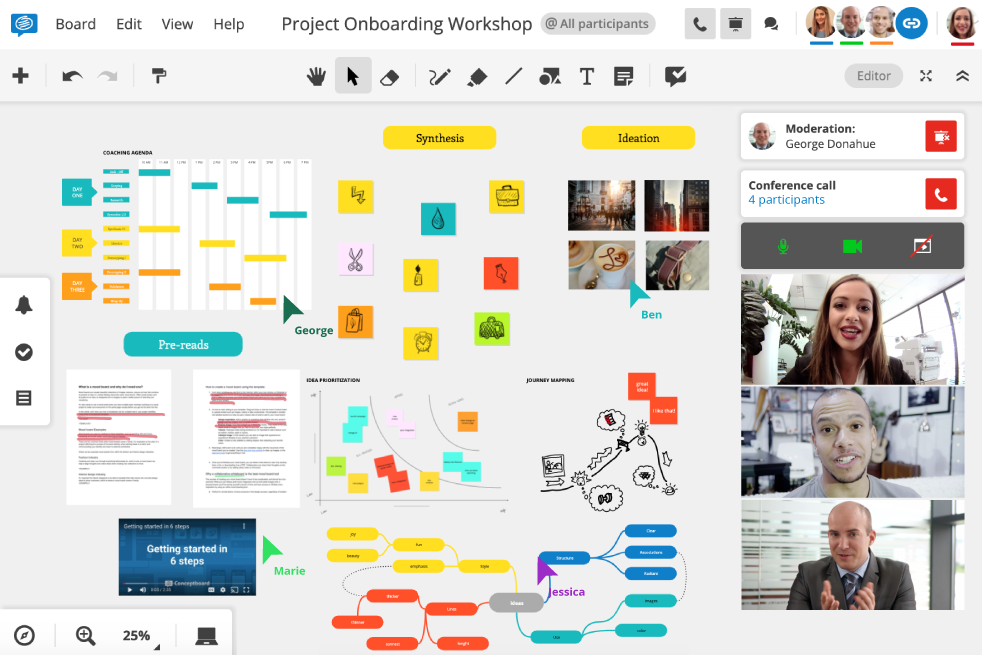
Conceptboard puts task management directly onto the canvas. You can create tasks, then assign an owner, add start and due dates, and set a status. The same work can then be organized into Kanban boards or Gantt timelines. It also has built-in video calls, so teams can discuss the board without opening a separate meeting app.
Key features:

  • Board tasks: Create tasks directly on the board, then assign them to team members, set start and due dates, add statuses, and categorize them with tags.
  • Kanban and Gantt planning: Organize day-to-day work in Kanban boards or use Gantt-style timelines to plan larger projects and make dependencies easier to track.
  • Jira integration: Import Jira issues as tasks, update assignees and statuses, and sync changes between Jira and Conceptboard.
  • Moderator mode: Guide everyone through the same part of the board during presentations or workshops.
  • Board sections and exports: Organize large boards into sections, reorder them in the board outline, and export selected sections as PDFs for sharing or follow-up.

Pros and cons

Pros Cons
The Starter plan lets you create unlimited boards, which gives small teams more room to use different projects. Video and audio conferencing are limited to Pro boards. On mobile devices, conferencing is also only supported in Safari.
You can work with people outside your team without buying them a paid seat. Guests can review boards and contribute comments or markups, depending on their access level. Guest access is restricted. Guests can’t create board tasks, use @mentions, manage participants, or edit board tables.
  Conceptboard doesn’t currently list any native AI features. The company has said it is developing AI support, but there are no AI tools in the product yet.

Pricing

Starter Advanced Corporate and Government Special Plans
€5 per user/month From €10 per user/month From €14 per user/month Custom
  • Unlimited boards
  • Pre-built template library
  • Up to 5 active projects
  • Facilitator tools
  • 5 GB storage
  • Monthly and yearly billing starting with 1 user
  • Data centers in Germany
  • Self-service support

Everything in Starter, plus:

  • Team templates
  • Unlimited projects
  • Board history
  • Approval process
  • Advanced admin controls
  • Custom branding
  • 1 TB storage
  • 12-month contract for 10+ users (EVB-IT possible)
  • Optional IONOS or StackIT hosting
  • Email support

Everything in Advanced, plus:

  • Single Sign-On
  • Audit Logs
  • Unlimited storage
  • 24-month contract for 100+ users (EVB-IT or individual contract possible)
  • Priority support via email and phone
  • Personalized onboarding and training
  • Corporate & Government SLA

Everything in Corporate & Government, plus:

  • Data centers with the provider and in the region of your choice
  • Optional dedicated single-tenant hosting
  • Optional dedicated On-Premises hosting

6. Microsoft Whiteboards

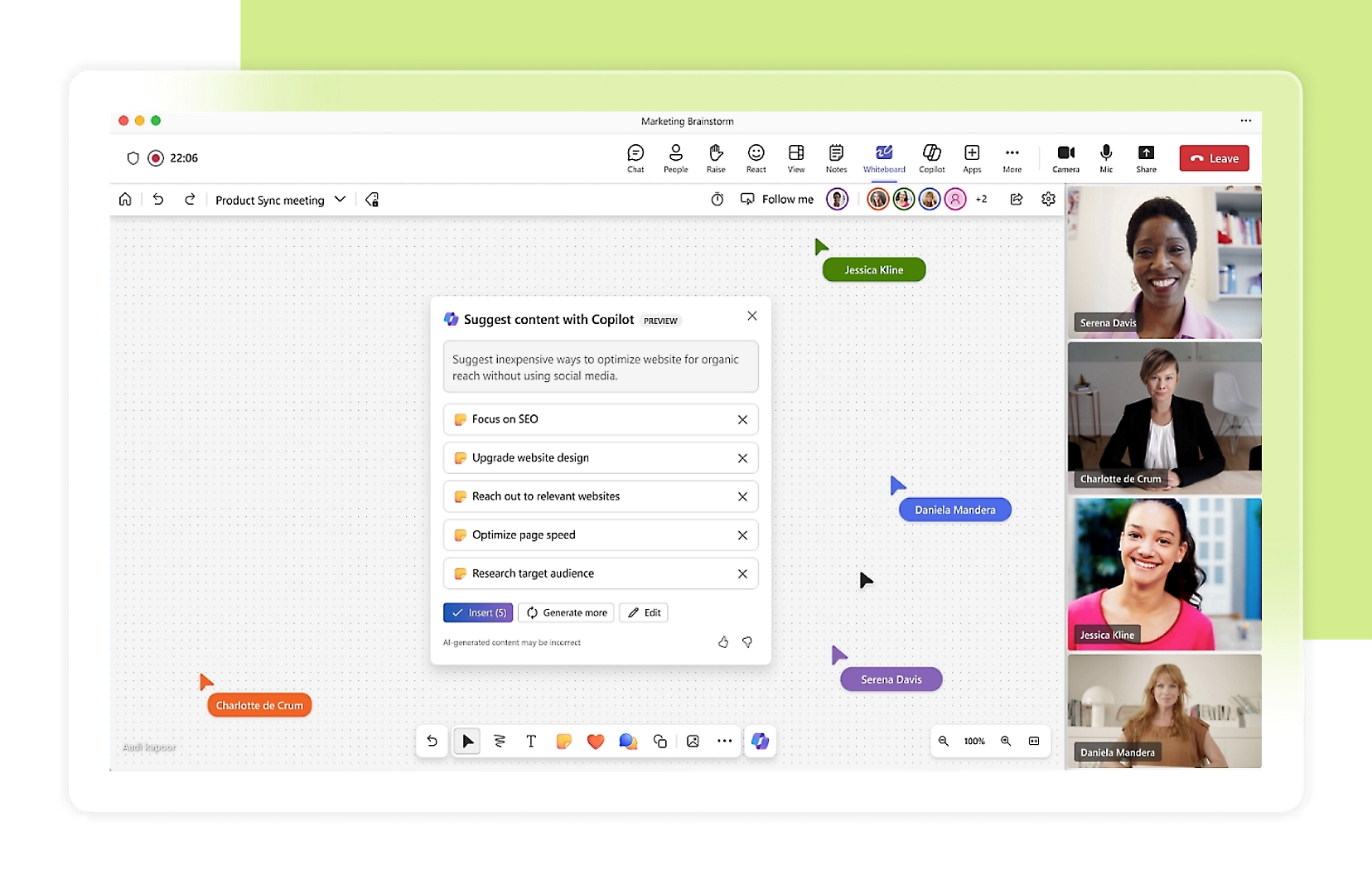
Microsoft Whiteboard is built for teams already working in Microsoft 365. You can brainstorm, map ideas, plan projects, and run workshops on a shared canvas, then open the same board inside Microsoft Teams when you need to discuss it with the wider team. It also connects with Microsoft Loop. You can add task lists, tables, checklists, voting tables, and progress trackers to a board, then reuse those components in Teams or Outlook.
Key features:

  • Copilot in Whiteboard: Generate ideas from a prompt, group sticky notes into categories, and summarize a board into key takeaways.
  • Follow mode: Guide everyone through the same part of the board during a workshop or presentation while participants can still edit and explore independently.
  • Templates: Start with ready-made layouts for brainstorming, SWOT analysis, journey mapping, affinity diagrams, project planning, and other common workshop formats.
  • Document imports: Add PDFs, PowerPoint files, and images directly to a board so teams can review reference material alongside their discussion.
  • Loop components: Add task lists, checklists, tables, voting tables, and progress trackers to the canvas.
  • Collaborative cursors and reactions: See who is working on the board in real time and use reactions to vote or respond during discussions.

Pros and cons

Pros Cons
Fits naturally into a Microsoft 365 workflow. Work and school boards are stored in OneDrive and can be reopened through Teams or the web after a meeting. Microsoft is retiring the standalone Whiteboard apps for Windows, iOS, and Android on October 16, 2026. Whiteboard will remain available through Teams and the web, but users who prefer a dedicated desktop or mobile app will lose that option.
Supports mouse and keyboard input as well as touchscreens and pens, including Surface Pen and other styluses. In Teams meetings, external participants can join a Whiteboard session if the organization allows it, but they lose access to the board after the meeting ends.
  The built-in export option only exports the board as an image in standard or high resolution. There’s no native PDF export option from Whiteboard.

Pricing

Microsoft Whiteboard is free to use with a Microsoft account, so you don’t need a Microsoft 365 subscription for the core whiteboarding experience. However, some AI features, including Copilot in Whiteboard, require an eligible Microsoft 365 subscription and/or Microsoft Copilot license. 

Microsoft 365 Business Basic Microsoft 365 Business Standard with Copilot Microsoft 365 Business Premium with Copilot
$7 per user/month, billed annually $23.50 per user/month, billed annually $32 per user/month, billed annually
  • Core identity and access management for up to 300 users
  • Web and mobile versions of Word, Excel, PowerPoint, and Outlook
  • Custom business email
  • Chat, call, and meet with Microsoft Teams
  • 10+ additional apps for your business needs (including Microsoft Bookings, Planner, and Forms)
  • AI chat with web grounding, writing assistance, and access to agents
  • Automatic spam and malware filtering
  • Microsoft Copilot in apps such as Word, Excel, PowerPoint, Outlook, and Microsoft Teams
  • AI chat grounded in your work data with large language model (LLM) choice
  • Pre-built agents for research and data analysis
  • Core identity and access management for up to 300 users
  • Desktop, web, and mobile versions of Word, Excel, PowerPoint, Outlook, and other apps
  • Custom business email
  • Chat, call, and catch up with Copilot in Microsoft Teams
  • 10+ additional apps for your business needs (including Microsoft Loop, Clipchamp, Bookings, Planner, and Forms)
  • Automatic spam and malware filtering
  • Microsoft Copilot in apps such as Word, Excel, PowerPoint, Outlook, and Microsoft Teams
  • AI chat grounded in your work data with large language model (LLM) choice
  • Pre-built agents for research and data analysis
  • Policy-based identity and access management for up to 300 users to help protect user accounts
  • Desktop, web, and mobile versions of Word, Excel, PowerPoint, Outlook, and other apps
  • Custom business email
  • Chat, call, and catch up with Copilot in Microsoft Teams
  • 10+ additional apps for your business needs (including Microsoft Loop, Clipchamp, Bookings, Planner, and Forms)
  • Device security and management to protect company devices
  • Email and threat protection against phishing, malware, and cyber attacks
  • Discovery, classification, and protection of sensitive data

7. Lucidspark

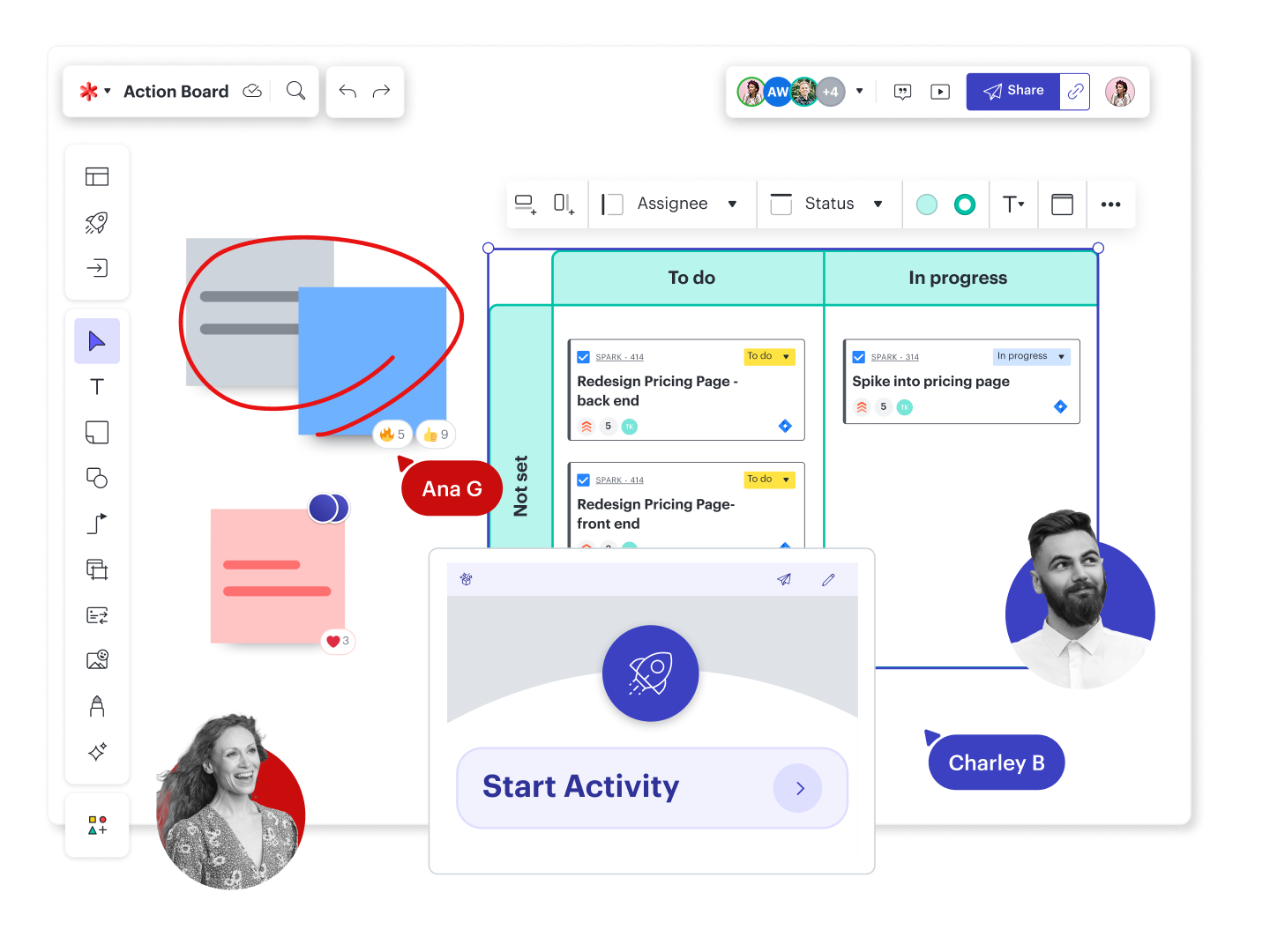
Lucidspark is Lucid’s collaborative brainstorming and planning tool. Teams can collect ideas, organize them into groups or dynamic tables, split into breakout boards, and use voting or Visual Activities to prioritize what matters. Teams can brainstorm freely in Lucidspark, then move the same work into Lucidchart when they need more formal process maps, system diagrams, or documentation.
Key features:

  • Visual activities: Run prioritization exercises, collect feedback, and rank ideas so teams can reach decisions directly on the board.
  • Dynamic tables: Sort sticky notes, shapes, and Lucid Cards into structured views to organize ideas by status, owner, priority, or other criteria.
  • Lucid AI: Generate ideas, group related themes, and summarize brainstorming sessions so teams can review what came out of the discussion faster.
  • Lucid cards: Turn ideas into work items and connect them with tools such as Jira and Azure DevOps so next steps can move into existing workflows.
  • Breakout boards: Split a large workshop into smaller groups, then bring each group’s work back into the main board afterward. This feature is available on Enterprise plans.
  • Integrations: Connect Lucidspark with tools such as Microsoft Teams, Zoom, and Webex for meetings.

Pros and cons

Pros Cons
Teams can sort ideas, prioritize options, and separate participants into smaller breakout groups instead of managing everything on one crowded board. Miro imports aren’t exact. Lucid says you may need to manually adjust around 20–30% of imported content, and some Miro shapes aren’t supported.
Teams can move from brainstorming into more structured work by turning ideas into process diagrams, Jira issues, or other development tasks. The dedicated iOS app is only available on Team and Enterprise plans. Other users need to access Lucidspark through a mobile browser.
  You can’t create new boards while offline, and offline editing isn’t supported in the iOS or Android apps.

Pricing

Free Individual Team Enterprise
$0 $9/month, billed annually $10 per user/month, billed annually Custom
  • 3 editable Lucidspark boards
  • Unlimited shapes per Lucidspark board
  • Freehand drawing
  • Emoji reactions
  • Commenting
  • Basic Visual Activities
  • Lucid AI
  • Presentation mode
  • Gather
  • Sort
  • Paths
  • Learning center

Everything on Free, plus:

  • Unlimited editable boards
  • Premium Visual Activities
  • 1 GB of storage

Everything on Individual, plus:

  • Touchscreen whiteboards
  • Developer platform
  • Visual Activities advanced controls
  • Revision history with versioning
  • Call others to me
  • Guest collaborators
  • Collaborator colors
  • Voting
  • Timer
  • Facilitator Tools
  • Laser pointer
  • Reporting shapes
  • Team estimation
  • Profile shapes

Everything on Team, plus:

  • Team hubs
  • Universal canvas
  • Includes Lucidchart for intelligent diagramming
  • Customizable document status
  • SAML authentication
  • Enforceable sharing restrictions
  • Breakout boards
  • Enforceable guest collaborator restrictions
  • Jira Cloud, Jira Data Center, Smartsheet, and Azure DevOps Cloud integrations
  • Enterprise templates
  • Enterprise Shield
  • Cloud Accelerator
  • Process Accelerator

8. Excalidraw

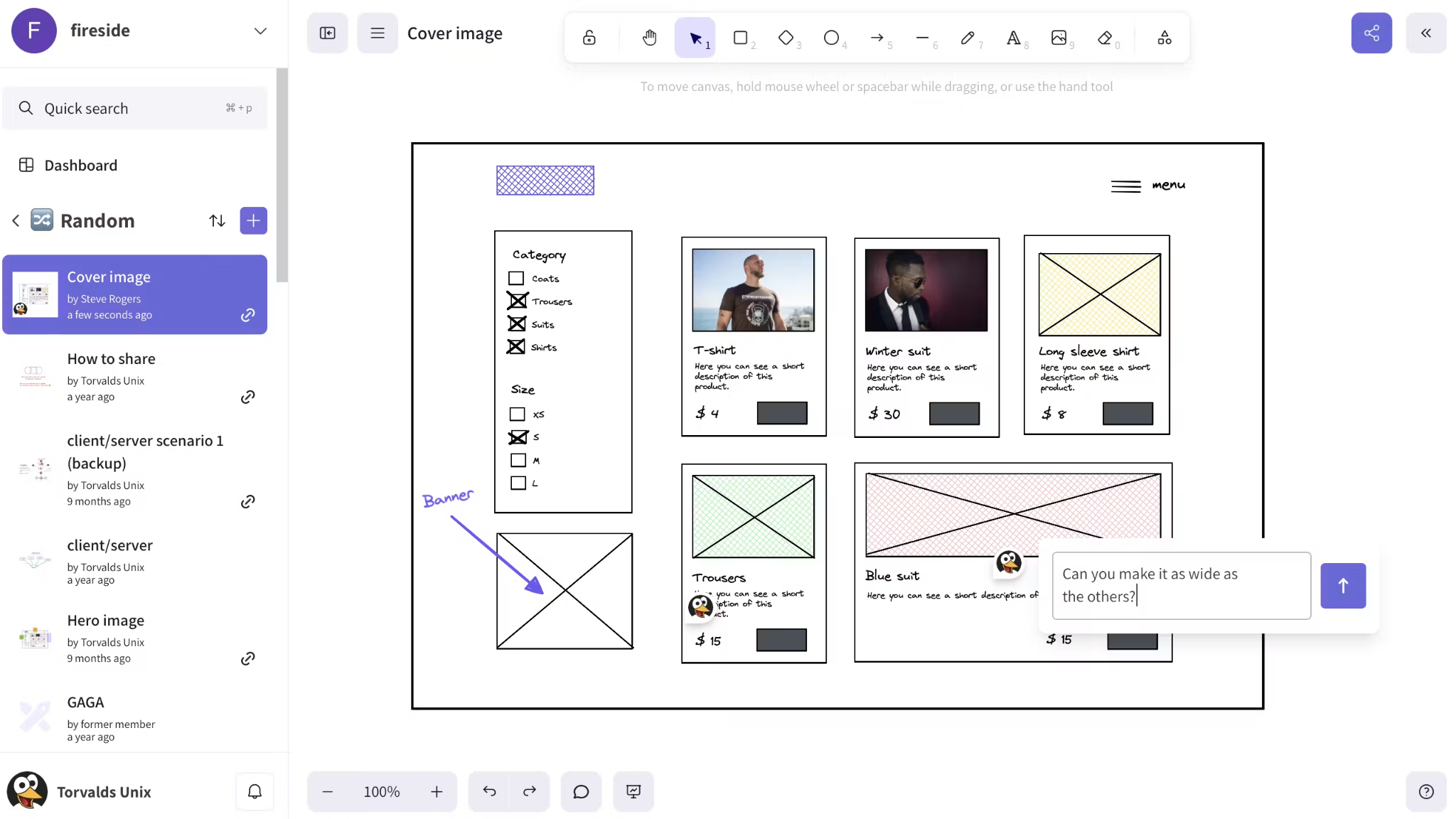
Excalidraw is an open-source canvas for people who want to start drawing without setting up a project or workspace first. The free editor works without an account and uses a deliberately hand-drawn style, which makes it a good fit for rough system diagrams, wireframes, and technical ideas that don’t need to look presentation-ready. It also goes beyond manual drawing with AI tools that can turn text into editable diagrams or convert a wireframe into code.
‍

‍

Key features:

  • Text-to-diagram AI: Describe a process or system in plain language and turn it into an editable diagram.
  • Wireframe-to-code: Build a rough wireframe on the canvas and use AI to turn it into an interactive mockup or code.
  • Real-time collaboration: Invite people by link and work on the same scene together. Excalidraw+ also adds comments, voice calls, and screen sharing.
  • Presentation mode: Turn frames into slides and present directly from the canvas. Excalidraw+ also supports live presentations, presenter notes, and PDF or PPTX exports.
  • Libraries: Save reusable shapes and elements to a personal library or use public libraries when you need common diagram components again.
  • Developer integrations: Connect Excalidraw with tools like Claude, Codex, Cursor, or OpenCode through MCP, or use the public API to generate and update diagrams programmatically.

Pros and cons

Pros Cons
You can use the tool without creating an account, and the free editor includes the full set of drawing tools plus unlimited collaborators. The free editor only gives you one whiteboard and stores work locally in your browser.
The editor is open source and uses an open .excalidraw file format, which gives technical teams more flexibility to integrate or customize it for their own workflows. Excalidraw’s own issue tracker notes limitations around stylus buttons, palm rejection, and switching automatically between pen and finger input.
  Several team features sit behind the paid plans, including comments, view-only access controls, presentations, PDF and PPTX exports, and workspace management.

Pricing

Free Plus
$0 $7 per user/month
  • Full editor functions
  • 1 infinite scene
  • Unlimited collaborators
  • Export to .png, .svg, or 'save to file'
  • Notion, Obsidian and other integrations
  • Libraries
  • E2EE locally in your browser
  • Open-source software for devs

Everything in Free +, plus:

  • Unlimited scenes and folders
  • Securely saved on cloud
  • Access management
  • Sharing with edit/view rights
  • Read-Only links & Embeds
  • Voice hangouts & screensharing
  • Presentations
  • Extended AI
  • Teams management & collaboration
  • Comments

Compare the best Miro alternatives

The right Miro alternative depends on what your team needs most, whether that’s brainstorming, running workshops, mapping user flows, creating diagrams, or turning ideas into project work.

When comparing whiteboarding tools, look at:

  • What you use the board for: Start with your main use case, such as brainstorming, workshops, user flows, process mapping, wireframing, or project planning. Some tools focus on freeform visual work, while others are better for structured diagramming or product workflows.
  • How your team collaborates: Check whether you need real-time editing, comments, voting, guest access, facilitator controls, or breakout sessions. Also look at how many people can work on the same board at once.
  • What happens after the session: Look at how easily ideas can become tasks, documentation, formal diagrams, or follow-up work. Integrations with tools such as Jira, Asana, Microsoft Teams, or Figma can make this easier.
  • How much structure you need: If you mainly sketch and brainstorm, an infinite canvas may be enough. If you create flowcharts, technical diagrams, wireframes, or timelines, look for other diagramming and planning tools.
  • How you work on the board: Consider whether your team mostly types, draws, or uses a stylus. The right tool should support the way people contribute during meetings and workshops.
  • Which devices your team uses: Check support for Windows, Mac, iPad, Android, and the web. Also check mobile access options and capabilities.
  • How pricing changes as your team grows: Compare per-user pricing, guest access, board limits, and which features require a higher-tier plan. Some free Miro alternatives may be enough for a small team but become restrictive as you require more people or projects.
  • How easy it is to move from Miro: If you already have Miro boards, check whether the new tool supports direct imports and what happens to comments, shapes, attachments, and other content during migration.

The table below makes the tools easier to compare at a glance.

  Key whiteboard features AI capabilities Pricing Best for… Vs. Miro
Goodnotes
  • Infinite Whiteboards
  • Handwriting and diagramming
  • Sticky notes and comments
  • Real-time collaboration
  • Stylus support
  • Templates
  • Search typed text, handwriting, and sketches
  • Summarize discussions
  • Extract action items
  • Turn notes into diagrams
  • Transcribe meetings and identify decisions
  • Work with ChatGPT and Claude
  • Free
  • Essential: $11.99/year
  • Pro: $35.99/year
  • Teams: $120/seat/year
  • Enterprise: Custom
  • AI Pass: $9.99/month with Essential or Pro
Professionals and teams who want to brainstorm visually, handwrite with a stylus, and move from a Whiteboard into notes or written documents. More focused on handwriting, note-taking, and visual thinking than Miro’s workspace.
Mural
  • Infinite canvas
  • Sticky notes and mind maps
  • Custom templates
  • Facilitator controls
  • Flexible permissions
  • Jira, Teams, and Figma integrations
  • Group related ideas
  • Identify themes
  • Summarize workshop output
  • Connect with AI assistants through Mural MCP
  • Free
  • Team+: $12/member/month
  • Business: $17.99/member/month, billed annually
  • Enterprise: Custom
Teams running facilitated workshops, retrospectives, sprint planning, and design thinking sessions. Puts more emphasis on structured workshops and facilitation.
Whimsical
  • Flowcharts and sequence diagrams
  • Wireframes
  • Mind maps
  • Real-time collaboration
  • Version history
  • Jira, Notion, Slack, and GitHub integrations
  • Generate flowcharts
  • Generate mind maps
  • Generate editable wireframes from prompts
  • Free
  • Pro: $12/editor/month
  • Business: $24/editor/month
Product managers and designers working through user flows, wireframes, and product functionality. Focused on product planning, wireframing, and structured diagramming.
FigJam
  • Facilitation tools
  • Technical diagramming
  • Open sessions
  • Board and CSV exports
  • Asana, Jira, and GitHub integrations
  • Miro imports
  • Generate boards and flowcharts
  • Create mind maps and timelines
  • Create project plans
  • Group sticky notes into themes
  • Summarize boards into takeaways and next steps
  • Starter: Free
  • Professional: Full $20/month, Dev $15/month, Collab $5/month
  • Organization: Full $55/month, Dev $25/month, Collab $5/month
  • Enterprise: Full $90/month, Dev $35/month, Collab $5/month
Teams that already do most of their design work in Figma Fits naturally into a Figma workflow and supports direct Miro board imports.
Conceptboard
  • Board-based tasks
  • Kanban planning
  • Gantt timelines
  • Jira integration
  • Moderator mode
  • Board sections and PDF exports
  • No native AI features
  • Starter: €5/user/month
  • Advanced: From €10/user/month
  • Corporate & Government: From €14/user/month
  • Special Plans: Custom
Teams that want tasks, deadlines, and project timelines connected to their board. Keeps task and project management directly on the canvas.
Microsoft Whiteboards
  • Templates
  • Document imports
  • Follow mode
  • Collaborative cursors and reactions
  • Loop task lists and checklists
  • Progress trackers
  • Generate ideas
  • Group sticky notes
  • Summarize boards into key takeaways
  • Whiteboard: Free with a Microsoft account
  • Microsoft 365 Business Basic: $7/user/month, paid yearly
  • Business Standard with Copilot: $23.50/user/month, paid yearly
  • Business Premium with Copilot: $32/user/month, paid yearly
Teams already working in Microsoft 365, Teams, Outlook, and Loop. Keeps whiteboarding inside the Microsoft ecosystem, but offers fewer export options and its standalone apps are being retired.
Lucidspark
  • Dynamic Tables
  • Visual Activities
  • Lucid Cards
  • Breakout boards
  • Facilitator tools
  • Teams, Zoom, and Webex integrations
  • Generate ideas
  • Group related themes
  • Summarize brainstorming sessions
  • Free
  • Individual: $9/month, billed annually
  • Team: $10/user/month, billed annually
  • Enterprise: Custom
Teams that brainstorm collaboratively and then need more structured diagrams or development work. Connects brainstorming with Lucidchart for formal process maps and system diagrams.
Excalidraw
  • Hand-drawn infinite canvas
  • Real-time collaboration
  • Presentations
  • Reusable libraries
  • Screen sharing
  • Developer integrations
  • Turn text into editable diagrams
  • Convert wireframes into interactive mockups or code
  • Free
  • Plus: $7/user/month
People who want a lightweight, open-source canvas for rough diagrams, wireframes, and technical ideas. Quick diagrams and wireframes rather than facilitated workshops or project planning, and doesn’t require an account for the free editor.

Switch from Miro today

The various alternatives to Miro take different approaches to visual collaboration. Some focus on facilitated workshops or structured diagramming, while others prioritize handwriting, visual note-taking, or lighter team workflows.

If your team mainly uses Miro to sketch ideas, map concepts, and collaborate visually, Goodnotes gives you those core workflows and more. You can work on an infinite Whiteboard with a stylus, build diagrams, leave comments, and collaborate in real time, then switch to Notebooks, PDFs, or Text Documents to write up meeting notes, annotate supporting files, or document decisions and next steps.

Goodnotes AI can also summarize discussions, extract action items, and turn notes into diagrams. Goodnotes AI for Meetings can record and transcribe sessions, then identify decisions and next steps.

Try Goodnotes and give your team one place to sketch, discuss, document, and act on ideas.

Give your ideas room to grow

Brainstorm on an infinite Whiteboard, sketch with a stylus, collaborate with your team, and turn discussions into next steps with Goodnotes.

Try Goodnotes for free

FAQs

What is better than Miro?

Goodnotes is a better fit if you mainly need visual brainstorming, handwriting, diagramming, and collaboration, plus somewhere to continue working in Notebooks, PDFs, and Text Documents afterward. Mural is better suited to facilitate workshops, while Whimsical and FigJam are good options for product and design workflows.

What are some free alternatives to Miro?

Some free Miro alternatives include Goodnotes, Mural, Whimsical, FigJam, Microsoft Whiteboard, Lucidspark, and Excalidraw. Each tool offers a free version, although some restrict the number of editable boards, objects, files, or advanced collaboration features available without upgrading.

Is there a Microsoft tool like Miro?

Yes. Microsoft Whiteboard is Microsoft’s alternative to Miro. It supports brainstorming, planning, diagramming, and workshops on a shared canvas. It works best for teams already using Microsoft 365, since much of its value comes from connections with Teams, Loop, and other Microsoft tools.

Is Notion a Miro alternative?

No, Notion and Miro support different parts of the workflow. Miro is built for visual brainstorming, diagramming, and workshops, while Notion is better suited to documentation, databases, and project tracking. You can use them together, or choose between them based on whether you need a collaborative canvas or a more structured workspace.

Icon of a black pen writing blue lines on a white background.
Goodnotes Content Team

View related posts

8 Miro alternatives for whiteboard collaboration + visual brainstorming

Icon of a black pen writing blue lines on a white background.
Goodnotes Content Team
Looking for a Miro alternative? Compare Goodnotes, Mural, FigJam, Whimsical, and more by features, AI tools, pricing, and best use case.
Nov 12, 2026
-
17
min read

The best online digital whiteboard tools in 2026

Icon of a black pen writing blue lines on a white background.
Goodnotes Content Team
Compare the 8 best online whiteboard apps for teaching, brainstorming, and collaboration. Explore Goodnotes, Miro, Mural, and more on key features, pricing, and free options.
Nov 10, 2026
-
19
min read

How AI enhances your meeting notes + 5 AI note-takers

Icon of a black pen writing blue lines on a white background.
Goodnotes Content Team
Need a faster way to make your notes comprehensive and easily shareable? Here's how AI enhances your meeting notes, plus the five best tools for the job.
Nov 6, 2026
-
12
min read